
Problem: Browser prompts users during every login: "Do you wan to open or save launch.ica (1.41KB) from redhenremote.com?". Prompt varies depending on the browser you're using. Here is an example of the Internet Explorer prompt:

Resolution
Please refer to the instructions for your particular browser:
Internet Explorer:
Add https://redhenremote.com to the Local Intranet zone:
1. Open Internet Explorer and navigate to https://redhenremote.com.
2. Select Tools > Internet Options > Security tab.
3. Select the Local Intranet icon from the Zone window and click Sites > Avanced.

4. https://redhenremote.com should appear in the Add this website to the zone field. If it does not, type in the address. Click Add and then Close all dialog windows.
Edge:
Same as Internet Explorer above, but you must get to the Security tab via Windows, not the browser:
- Select Settings from the Start menu.
- Type in “Internet Options” in the search box on the pop-up window. Select Internet Options in the search result. You will get the familiar Internet Options window. Continue from step 3 above.
Chrome:
1. When the launch.ica file downloads in Google Chrome, click the drop-down list for the file in the download bar and select Always Open Files of This Type.

Firefox:
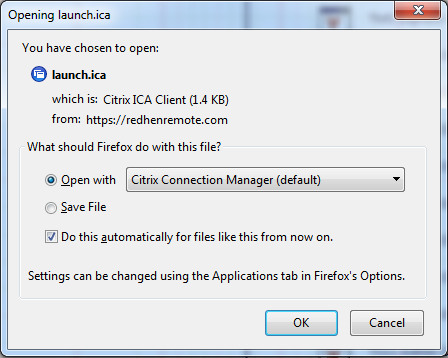
When launch.ica downloads in Firefox:
1. Select Open with Citrix Connection Manager (default).
2. Check Do this automatically for files like this from now on.
3. Click OK.
If you continue to be prompted, please open a ticket with the Red Hen Helpdesk.
Comments
0 comments
Please sign in to leave a comment.