
Issue: QuickBooks displays a Printer Driver Error! when attempting to print reports from Fixed Asset Manager.
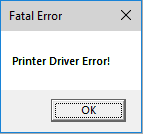
Cause: The Fixed Asset Manager does not recognize printer names longer than 64 characters. Printer names get amended in the Red Hen environment so they are frequently longer than 64 characters.
Solution: shorten your default printer name to resolve this issue. You can shorten your printer name within Red Hen to resolve this issue for your current session or you can shorten your default printer name locally to resolve this issue permanently.
To shorten the printer name within Red Hen:
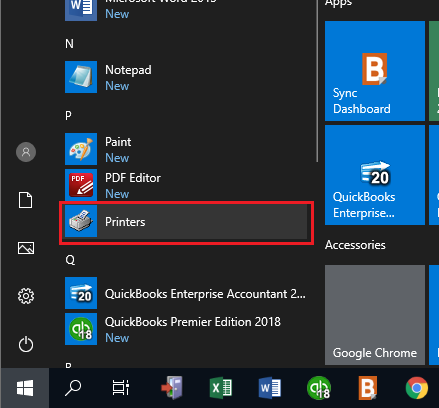
1. Select Printers from the Red Hen Start Menu.
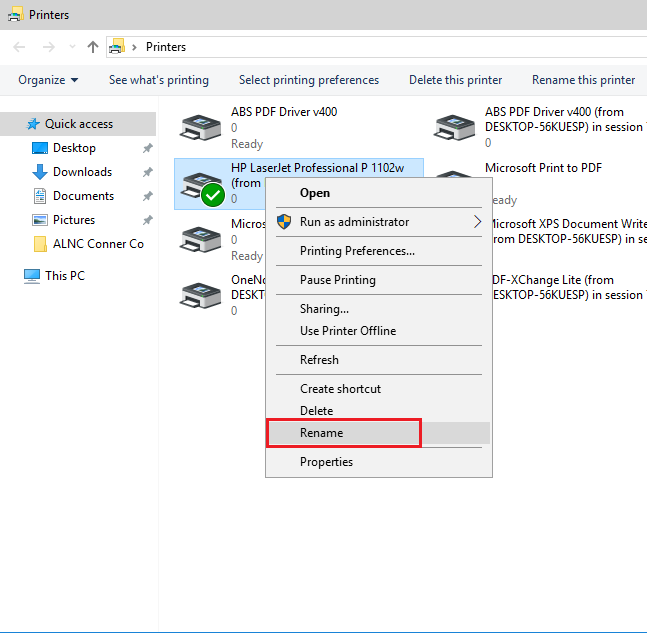
2. Right-click on the default printer (green checkmark) and select Rename.
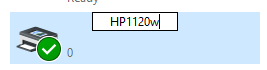
3. Type in a short printer name
4. Restart Fixed Asset Manager
You should now be able to print FAM reports. Note that the printer name will revert to the longer name the next time you launch Red Hen. To address this issue permanently, shorten your printer name locally (see below).
To shorten your printer name locally:
- Log out of your current Red Hen session (door icon on task bar)
- Locate your local printer folder. Steps vary depending on your local operating system.
- Right-click on your printer and select Rename.
- Rename your printer with a name that is 10 characters or less. Save your changes.
- Launch a new Red Hen session. You should now be able to print reports from FAM.
Comments
0 comments
Please sign in to leave a comment.